
☆ Intro
I'm still actively learning this myself, so some details may be incomplete or incorrect. If you spot an issue, please reach out so I can fix it!
☆ What are coloursets?
Coloursets let us give different areas of a model's material their own colours and surface properties. An ID map tells the game which colourset row each area should use.
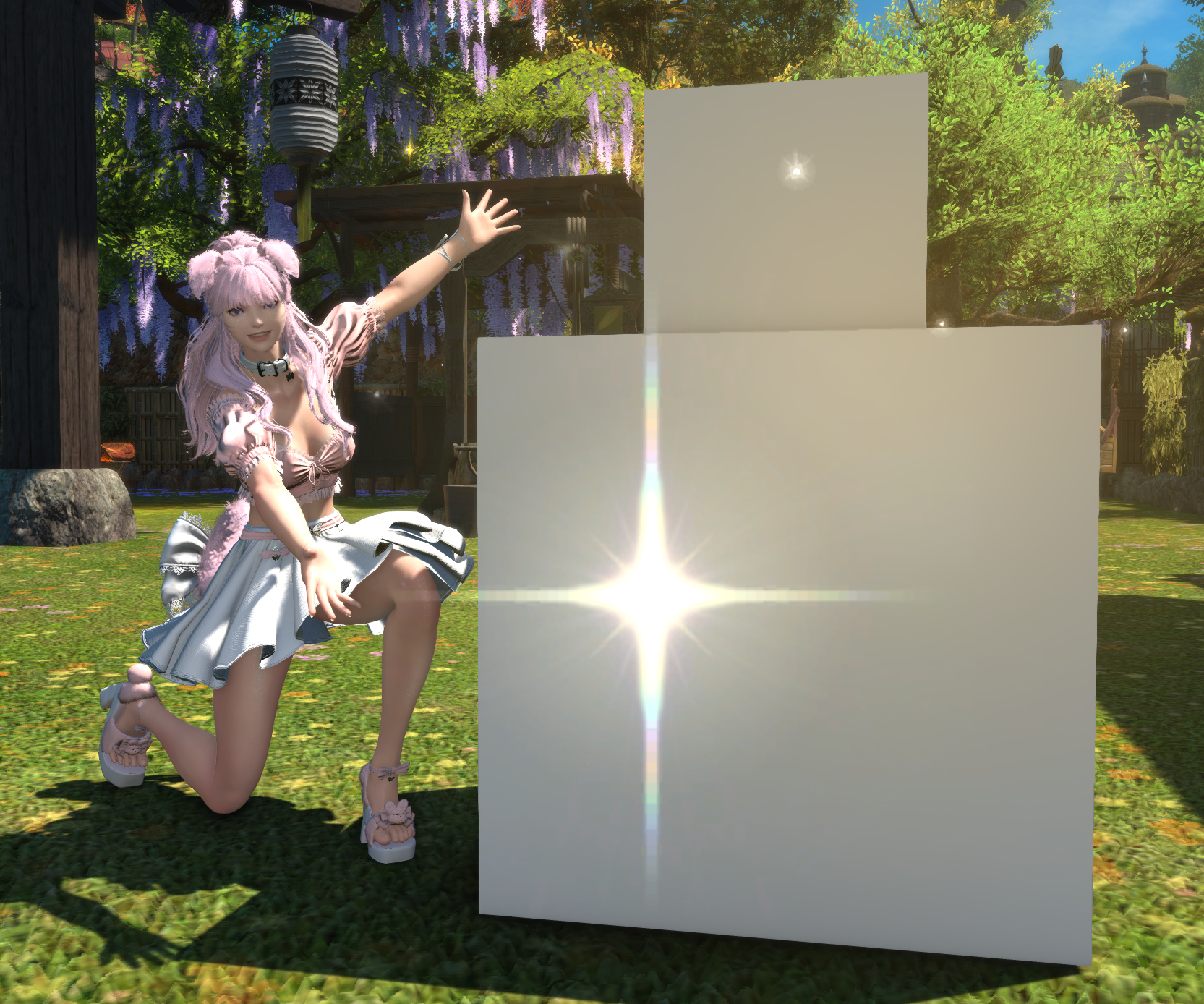
I've made a quick lil cube for you to play with to make things easier to explain! :3
☆ Painting your ID map
Each colour in the grid below points to a different colourset row. To keep things super non-technical, just follow the steps below to get started!
Pick the row you want to use and click Copy to grab its hex value.
Paint that colour onto your ID map, using your model's UV layout as a guide.
Use a hard brush or pencil tool with anti aliasing turned off. Soft edges make in between colours, which can land on the wrong row.
Repeat for every area you want to give its own row.
#00FF00
#000000
#11FF00
#110000
#22FF00
#220000
#33FF00
#330000
#44FF00
#440000
#55FF00
#550000
#66FF00
#660000
#77FF00
#770000
#88FF00
#880000
#99FF00
#990000
#AAFF00
#AA0000
#BBFF00
#BB0000
#CCFF00
#CC0000
#DDFF00
#DD0000
#EEFF00
#EE0000
#FFFF00
#FF0000
The colours you paint onto the ID map aren't the colours your model will end up with. They just tell the game which row's settings to apply where!
Here's my cube's UV layout with the ID map overlaid, so you can see how I've assigned different rows to different areas:
The faces all look the same, but each one is a slighttlyyy different shade! The top cube uses the smaller faces on the right. For this example, 4 of them are combined and one is separated.
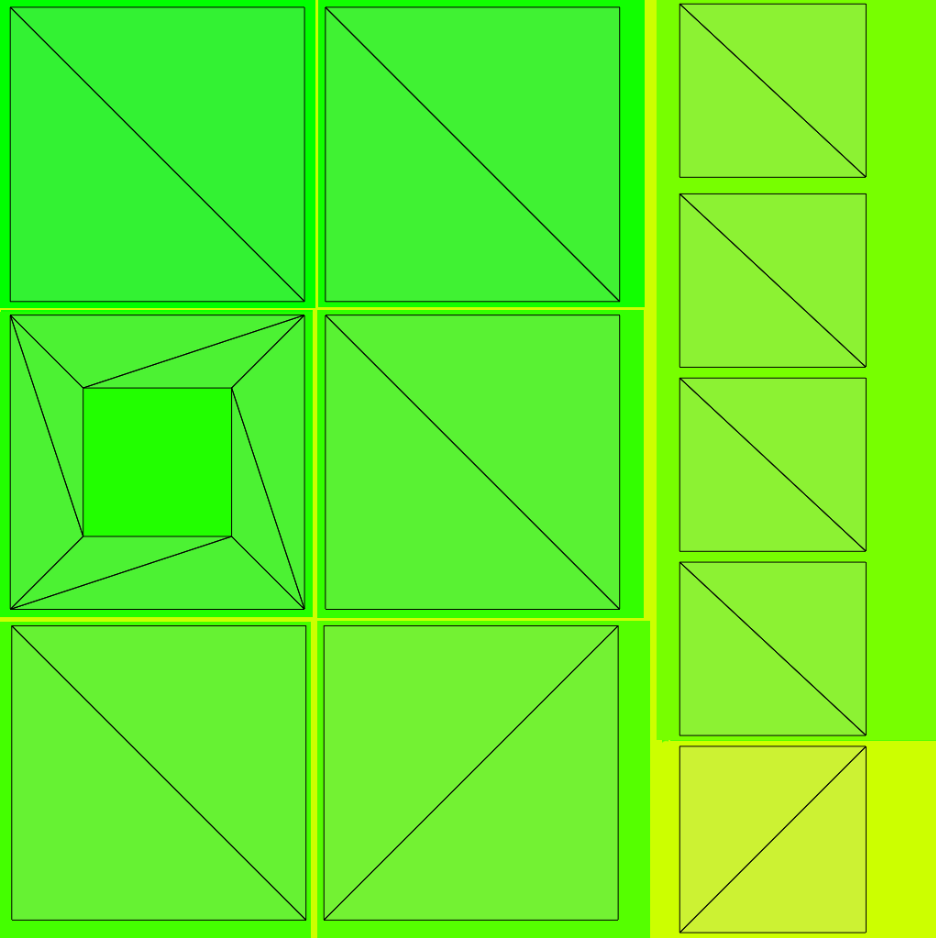
Here is the super quick cube mod I made so you can follow along! Dont judge it lol
☆ Opening the colourset editor
Once you've imported the cube mod or finished your own ID map, let's head into the game and see what those settings do.
Find your mod in Penumbra and click "Advanced Editing".
In the window that opens, go to the "Materials" tab.
Select your material from the drop-down list.
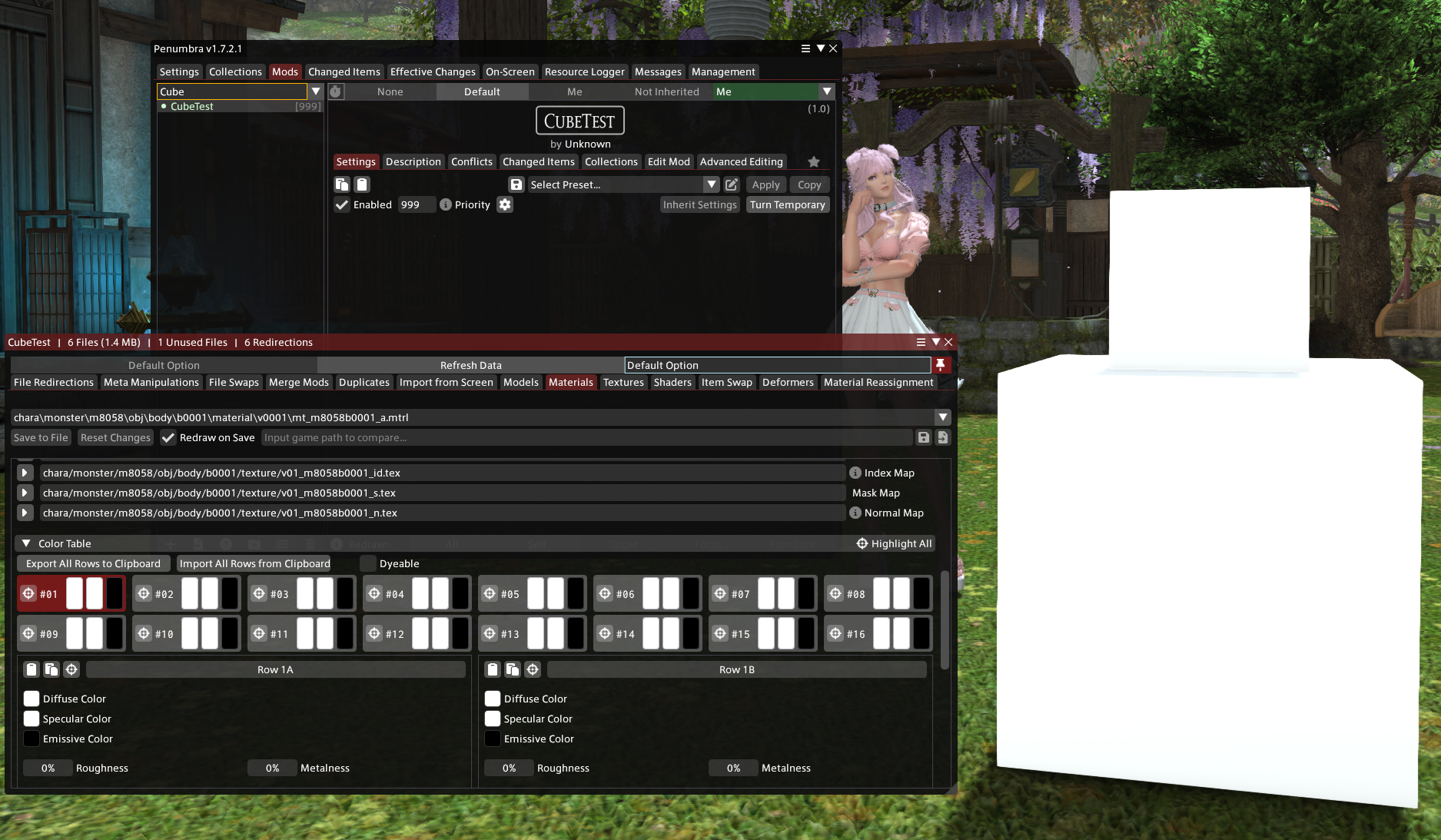
If there's a red warning at the top saying "The current material has not been found on your character..", click "Reload live preview" to the left of that message.
Don't skip this one! Live preview lets you see your colourset changes in game as you make them, which just makes life so much easier.
If you see a list instead of a grid of boxes like in my screenshot, your mod is using pre DT coloursets and this guide won't work for you. Learn how to automatically upgrade your materials to DT here > (wip)
☆ Finding the row you want to edit
In the Color Table you'll see a grid of numbered boxes. Each box holds a pair of rows, A and B, matching the A and B colours in the ID grid.
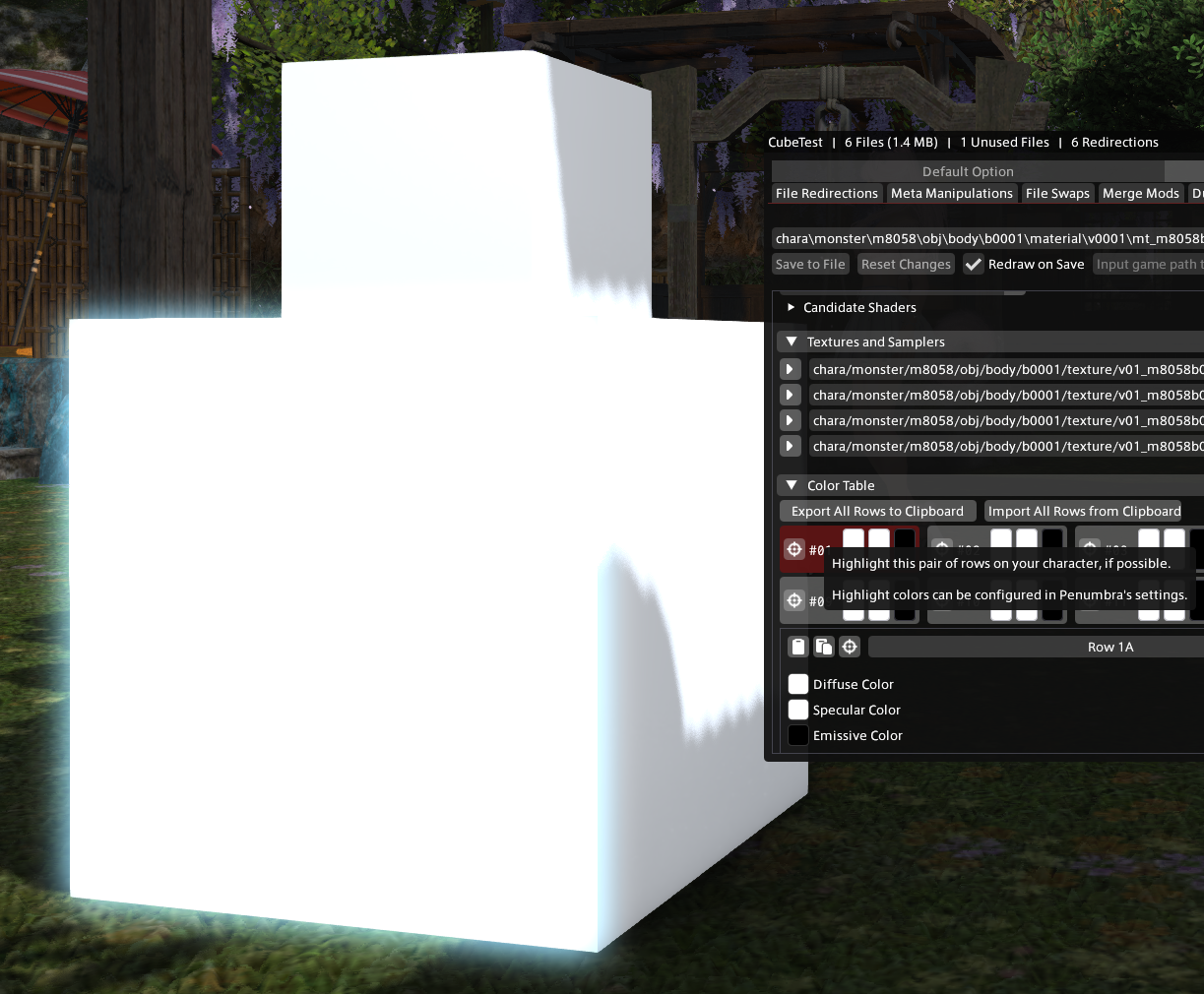
Hover over the little target icon  beside a box's number to highlight that area on your model.
For our cube, try the target beside #01. The front face of the lower cube should light up, like this:
Once you've found the one you want, click it so it turns red. Its settings will open underneath, with row A on the left and row B on the right.
This is where we can set the diffuse colour, specular, metalness, sphere maps and loads more, including enabling dye:
- Diffuse Colour: the base colour of the row. This is the main colour you'll see.
- Specular Colour: the colour of the shine on the surface. Brighter looks shinier, darker looks more matte.
- Emissive Colour: makes the area glow. Black means no glow.
- Roughness: controls the size of the shiny highlights. Lower looks more polished, higher looks softer.
- Metalness: how metallic the surface looks. Metal takes its colour from the diffuse colour.
- Sphere Map: adds a preset reflection effect, like metal or holographic shine, with a slider for how strong it is.
- Dye: tick "Dyeable" and the paint can boxes to let the row be dyed in game, using dye channel 1 or 2.
Huge thank you to XIV Modding 7.0 Colorsetting Guide, and their other documents for helping me understand these.
☆ Editing the surface
Now for the fun bit! Here's a quick look at highlighting rows and changing their diffuse colour. You can see the cube update live as the colours change:
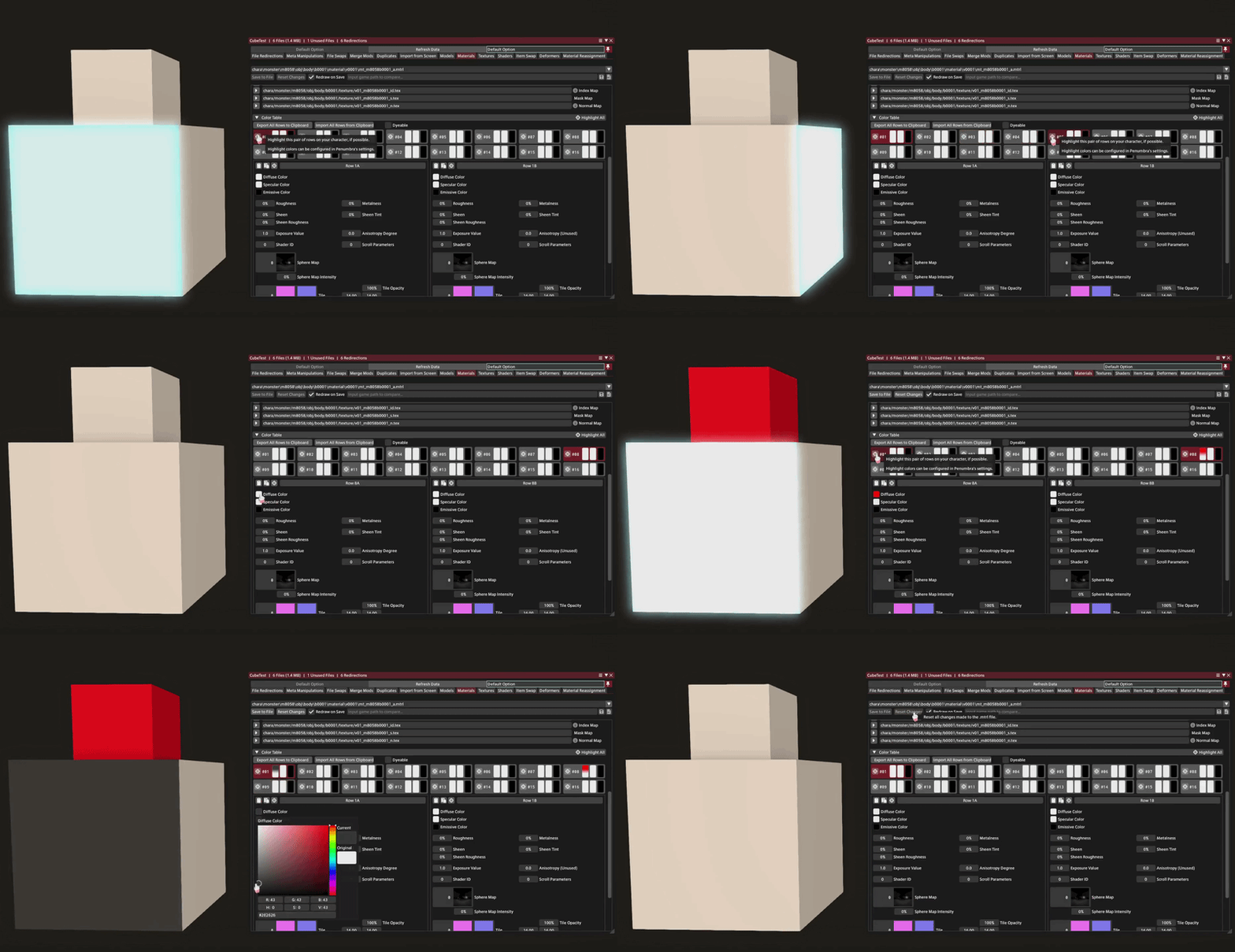
Let's start with two simple changes.
Make the smaller top cube glow yellow. Find its row with the targets, click it, then set its Emissive Colour to yellow.
This works the same way as editing diffuse. Click the black box labelled Emissive Color and move the colour around until you see it glow. The brighter the colour, the brighter the glow!
Give each face of the lower cube a different colour. Find each face's row and change its Diffuse Colour.
For my example, I've set the diffuse on 1A to pink, the diffuse on 5A to purple and the emissive on 8A to yellow.
Feel free to play around and get comfortable with the menus. Everything can be reverted with "Reset Changes" as long as you haven't saved yet!
Once you're happy with your colours, hit "Save to File" at the top and it will update the mod.
☆ Let's play around with normal maps and metalness!
FFXIV comes with a bunch of built-in normal map tiles you can use to get lots of different effects. When I'm making a mod, I often leave my own normal map blank and use these in-game options instead.
Tiles are edited a little differently from the other settings. Instead of picking a colour, you choose a tile, then change its opacity and scale in the Tile Transform section. This part will be a lot of playing around on your end to get the effect you want!
Click the Tile box on your row and pick a tile from the list.
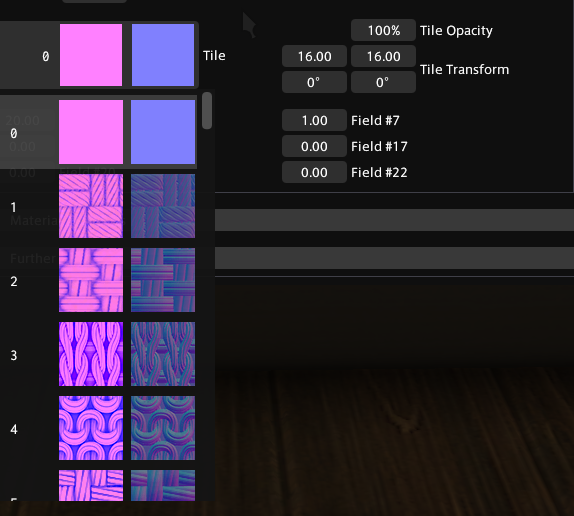
Use Tile Opacity to change the strength of the effect.
Use the Tile Transform boxes beside it to change the scale (top row, default is 16) and the rotation (bottom row).
In the example below I've made a wet scales effect using these settings:
- Metalness: 27%
- Sphere Map: 1, at 34% intensity
- Tile: 38, at 83% opacity
- Tile Transform: both scales set to 10, 0° rotation
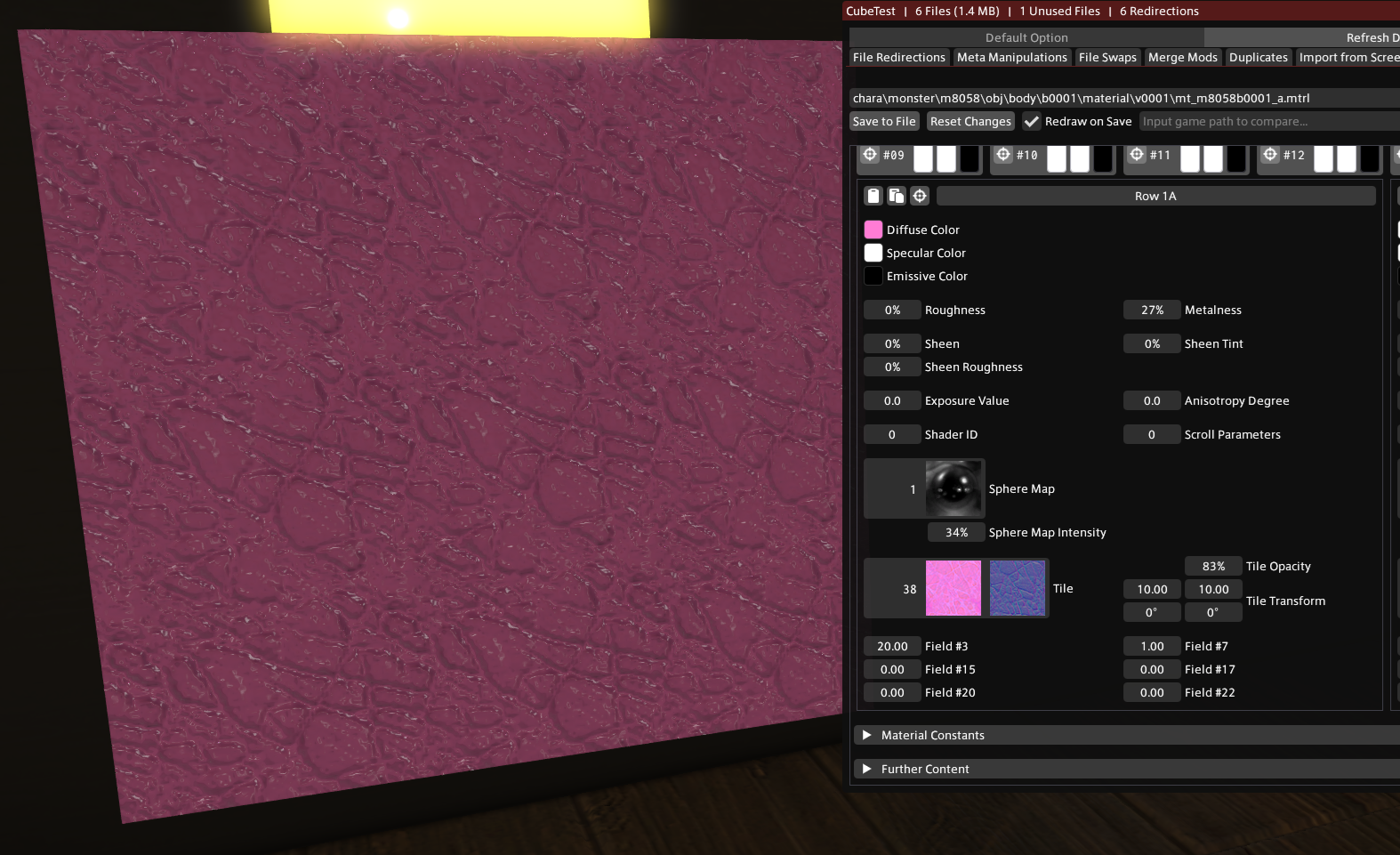
This will all come down to personal preference and playing around. I'll update this guide with some useful presets as I find them!
Want to make your rows dyeable? I'll be making a separate guide on enabling dyes, coming soon!
Now you can edit your own mods, or change the colours of premade mods if they're set up correctly!
Want to read more technical stuff that is beyond me? The XIV Modding colourset page goes even deeper. :3
Paint row colours onto your ID map> Penumbra > Advanced Editing> Materials tab> Pick your material> Reload live preview> Click a row and edit> Save to File